
New Update: SR-Log and Smart Watermark Features Are Here
Skyrover has released a significant software update for both the S1 and X1 drones, introducing two features that give creators more control over their footage from the moment of capture to the final share: SR-Log, a flat color profile for advanced color grading, and Smart Watermark, a tool for branding both photos and videos directly within the Skyrover app.
Whether you are a content creator who wants a more cinematic look or a real estate agent who needs branded aerial footage, this update adds professional-grade tools to drones that are already among the most capable in their class. Here is a detailed walkthrough of what each feature does, why it matters, and how to start using it.
What Is SR-Log and Why Does It Matter?
SR-Log is a logarithmic color profile -- often called a "flat" or "log" profile -- that captures video with a wider dynamic range than standard color modes. In practical terms, this means the footage preserves more detail in bright highlights and dark shadows, giving you significantly more flexibility when you color-grade your footage in post-production.
To understand why this matters, it helps to know how standard video capture works. Most drones (and most cameras in general) shoot in a "rec.709" color space, which applies a fixed curve that makes the image look natural straight out of the camera. The trade-off is that this baked-in look discards a significant amount of dynamic range. Bright skies may clip to white, and dark shadows may lose detail, and neither can be recovered in editing because the information was never captured.
SR-Log takes a different approach. Instead of applying a final look in-camera, it captures the raw sensor data with a much flatter, lower-contrast curve. The resulting footage looks washed out and gray when viewed directly -- this is normal and expected. But behind that flat appearance is a much richer set of data that you can manipulate in editing software like DaVinci Resolve, Adobe Premiere Pro, or Final Cut Pro.
The Benefits of Shooting in Log
- More dynamic range: SR-Log captures a wider range of brightness levels, preserving detail in both bright skies and shadowed areas that would be lost in standard mode.
- Better color grading flexibility: Because the color data is less processed, you have far more latitude to push the footage toward any look you want -- warm and saturated, cool and muted, high-contrast, or naturalistic.
- Consistent results across conditions: When you shoot in standard mode, the camera's automatic processing may produce different looks depending on the lighting. SR-Log provides a consistent baseline that you then grade to your preference, resulting in a more uniform final product across shots taken at different times of day.
- Professional workflow compatibility: Log profiles are the standard in professional film and video production. Shooting in SR-Log means your drone footage integrates more naturally into multi-camera projects where your other cameras are also shooting log.
Major camera manufacturers like Sony (S-Log), Canon (C-Log), and DJI (D-Log M) all offer similar log profiles for the same reasons. SR-Log brings this capability to the Skyrover platform at a price point where it is rarely available.
How to Enable and Use SR-Log
Step-by-Step Setup
- Open the Skyrover app and connect to your drone.
- Navigate to Camera Settings (the gear icon in the camera view).
- Select Color Mode.
- Choose SR-Log from the available options.
- The live preview will immediately appear flatter and more washed out -- this confirms SR-Log is active.
Supported Shooting Modes
SR-Log works across multiple recording modes on both the S1 and X1:
- Normal Video: Standard video recording at all supported resolutions and frame rates.
- Slow Motion: High frame rate capture (such as 4K/100fps on the X1) with the full dynamic range benefit of SR-Log.
- QuickShots: Automated cinematic flight modes (Orbit, Dronie, Rocket, Boomerang) now capture with SR-Log's extended dynamic range.
This broad compatibility means you do not have to sacrifice the convenience of automated flight modes to get the grading benefits of SR-Log.
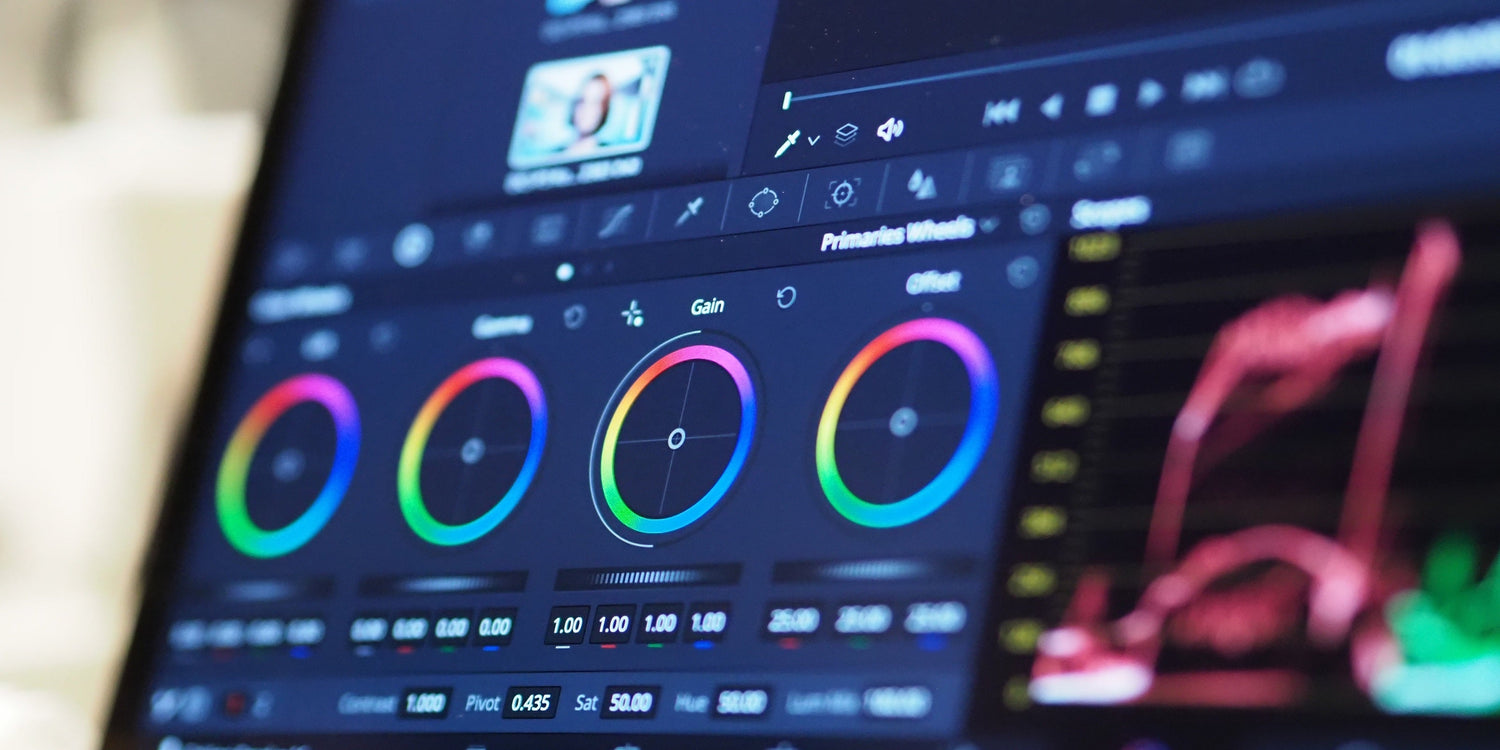
Working with SR-Log Footage in Post
SR-Log footage is not meant to be viewed or shared as-is. It requires color grading in post-production to restore natural-looking contrast and saturation. Here is a recommended workflow:
1. Apply the Official Skyrover LUT
Skyrover provides a free official LUT (Look-Up Table) designed specifically for SR-Log footage. A LUT is essentially a preset that maps the flat SR-Log colors to a natural rec.709 output. Applying the official LUT as a starting point gives you a correctly balanced image that you can then fine-tune.
Download the LUT from the Skyrover website. It is available in standard .cube format, which is compatible with DaVinci Resolve, Premiere Pro, Final Cut Pro, and most other editing applications.
2. Adjust Exposure and White Balance
After applying the LUT, fine-tune the exposure and white balance to match the specific lighting conditions of your shoot. SR-Log gives you the latitude to make these adjustments without degrading the image quality.
3. Add Creative Looks
Once the base correction is in place, you can apply creative grading -- adding warmth to golden hour footage, cooling down overcast scenes, or pushing contrast for a more dramatic look. Because SR-Log preserves so much data, you can make aggressive adjustments without banding, noise, or color artifacts.
Recommended Editing Software
- DaVinci Resolve (Free): Professional-grade color grading tools at no cost. The free version handles SR-Log footage with full LUT support.
- Adobe Premiere Pro / Lumetri: Widely used, with straightforward LUT application through the Creative tab.
- Final Cut Pro: Clean LUT integration through the Custom LUT effect in the Effects browser.
- CapCut (Free, mobile): For quick mobile edits, CapCut supports custom LUTs and is sufficient for basic SR-Log grading.
Smart Watermark: Branding Your Content
The update also introduces Smart Watermark, a built-in tool that lets you add branded or personalized watermarks to both photos and videos directly in the Skyrover app, without needing to export to a separate editing application.
This feature is particularly useful for:
- Real estate agents who need to brand property aerials with their agency logo.
- Content creators who want to add their handle or channel name before cross-posting to multiple platforms.
- Commercial photographers who need to protect their work with a watermark before sharing proofs.
- Businesses that want consistent branding across all drone content they publish.
Photo Watermark: How to Use
- After capturing your photo, open App Playback in the Skyrover app.
- Download the photo to your phone by selecting it and tapping the download icon.
- Once downloaded, tap the icon in the bottom-right corner of the screen.
- Select Photo Watermark from the menu.
- Customize the watermark text and position.
- Save and share.
Note: Photo Watermark only works with photos captured by the Skyrover drone. It does not support RAW photos -- only JPEG images.
Video Watermark: How to Use
- After recording your video, open Playback in the Skyrover app.
- Download the video to your phone.
- Tap the icon in the bottom-right corner.
- Select Video Watermark.
- Customize and save.
Note: Video watermarking involves re-encoding the video on your phone, which may result in a slight reduction in bitrate. This is normal and generally not noticeable at typical social media viewing resolutions. Performance depends on your phone's processing capability -- older or lower-end devices may take longer or may not support video watermarking.
How to Update Your Skyrover Drone
To access SR-Log and Smart Watermark, you need to update both the Skyrover app and the drone's firmware.
Step 1: Update the App
- Open the Skyrover app.
- Go to Profile.
- Tap Version Update.
- Select App Version Upgrade.
- The target app version is 1.1.5 or later.
Step 2: Update Drone Firmware
- With the drone powered on and connected to the app, go to Settings.
- Navigate to About.
- Tap Check for Updates.
- Follow the on-screen instructions to install the firmware update.
Important: If the firmware update fails, update the app to version 1.1.5 first, then retry the firmware update. The firmware update requires the updated app to communicate properly with the drone.
Device Availability
These features are available on both the Skyrover S1 and Skyrover X1. For X1 owners, the update is rolling out gradually over approximately one week. If you do not see the update immediately, check manually in Settings > About > Check for Updates.
Frequently Asked Questions
What exactly is SR-Log?
SR-Log is a flat color profile that captures video with expanded dynamic range. It preserves more detail in highlights and shadows than standard color modes, giving you more flexibility in post-production color grading.
Why does SR-Log footage look gray and washed out?
This is the intended appearance. SR-Log captures data with a flat, low-contrast curve to preserve maximum dynamic range. You apply a LUT (Look-Up Table) and color grade in your editing software to restore natural colors and contrast to your preferred style.
Where do I get the SR-Log LUT?
Skyrover provides a free official LUT pack on their website at www.skyroverdrone.com/pages/download. Download the .cube file and import it into your editing software.
Can I use SR-Log with QuickShots and slow motion?
Yes. SR-Log is supported across Normal Video, Slow Motion, and QuickShots modes on both the S1 and X1.
Does the watermark reduce video quality?
Video watermarking involves a slight bitrate reduction during re-encoding, but the difference is generally not visible at social media viewing resolutions. Photo watermarks do not affect image quality beyond adding the overlay.
Why do I not see the update on my X1?
X1 updates are rolling out gradually over approximately one week. You can check manually at any time by going to Settings > About > Check for Updates.
My firmware update failed. What should I do?
Make sure the app is updated to version 1.1.5 first, then retry the firmware update. Ensure your drone has adequate battery charge (above 30%) and a stable connection to your phone during the update process.
Explore the full range of Skyrover drones, accessories, and download the official SR-Log LUT pack at www.skyroverdrone.com.



Leave a comment
This site is protected by hCaptcha and the hCaptcha Privacy Policy and Terms of Service apply.